
Image to Pixel Art Converter
Two ways to make pixel art from a photo: an exact conversion with a fixed grid and a limited palette, run in your browser, or an AI redraw in the retro style you pick.
Coming soon
This tool is being finished and will open here shortly. Meanwhile, the image to image generator on the home page can restyle a photo from a prompt.
Open the image to image generator- Exact mode is free, no sign-up
- Exact mode never uploads your image
- AI mode redraws in eight retro styles
Photo to pixel art examples
Every result below came straight out of the exact mode, with the grid size and palette shown under it.
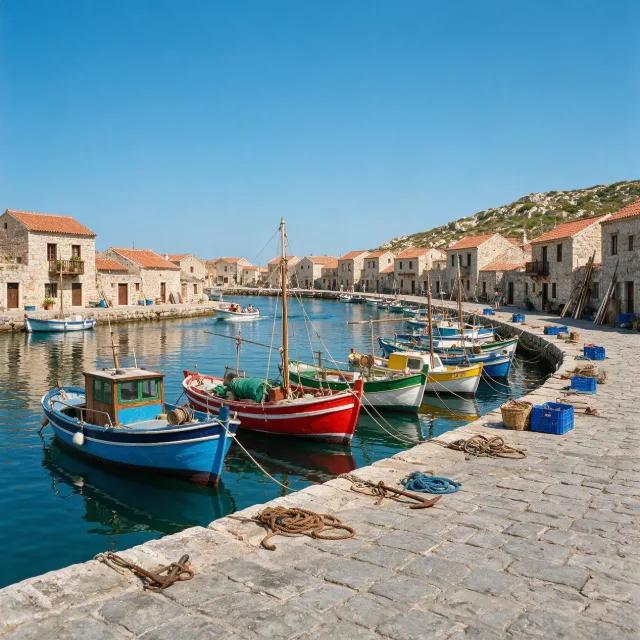 Original
 Pixel art
96 × 96 · AAP-64 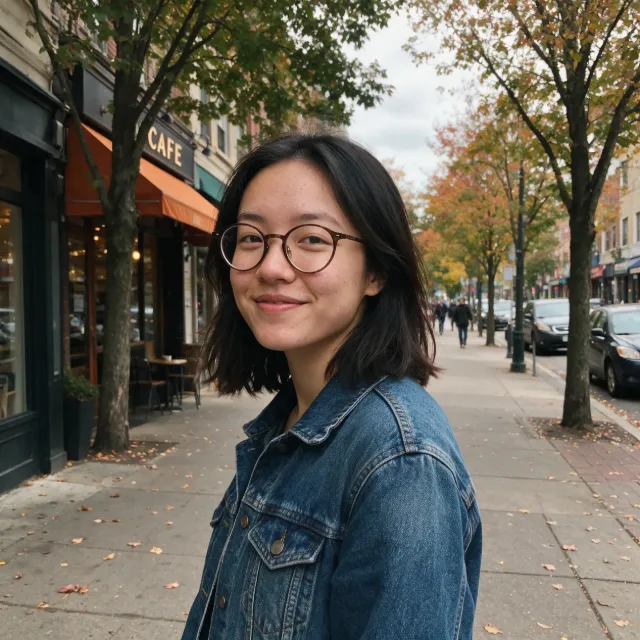 Original
 Pixel art
96 × 96 · Apollo 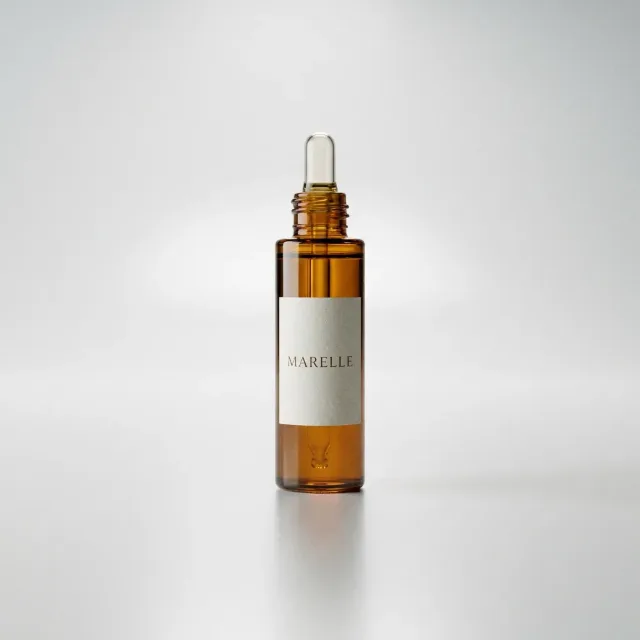 Original
 Pixel art
64 × 64 · DawnBringer 32 · ordered dithering 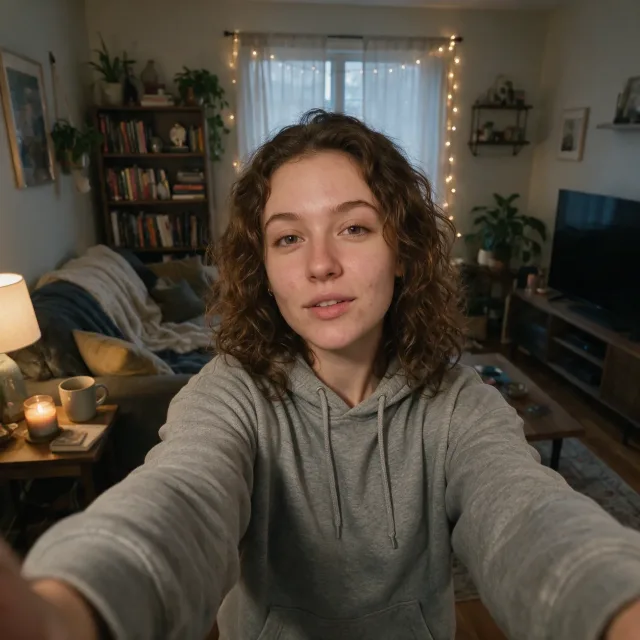 Original
 Pixel art
64 × 64 · Game Boy (DMG) · diffusion dithering 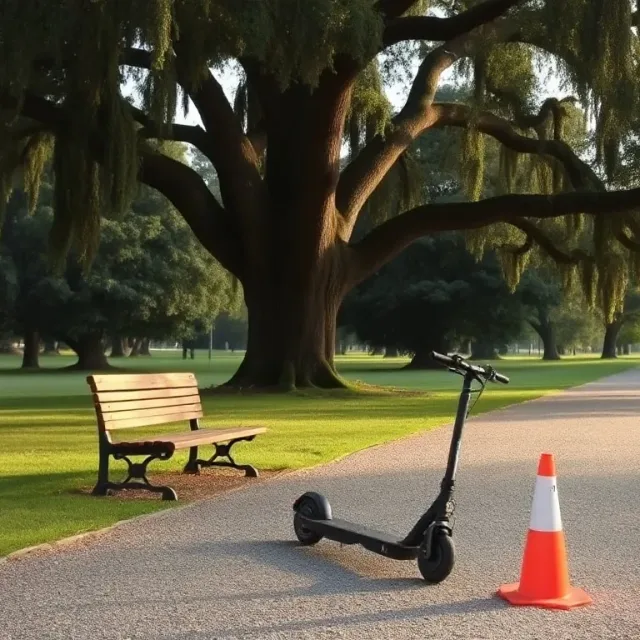 Original
 Pixel art
128 × 128 · Resurrect 64 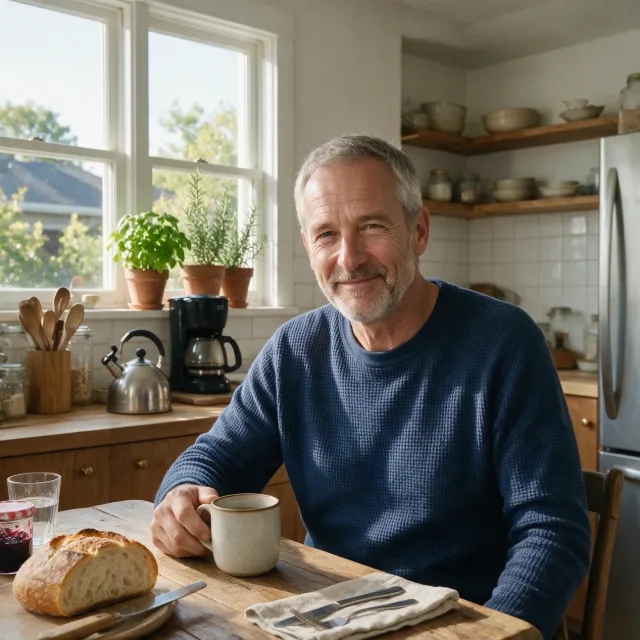 Original
 Pixel art
96 × 96 · Endesga 64
How to pixelate an image into pixel art
Three steps in the exact mode, all in your browser.
- 01
Add a picture
Upload, drag in or paste a photo, drawing or screenshot. PNG transparency is kept.
- 02
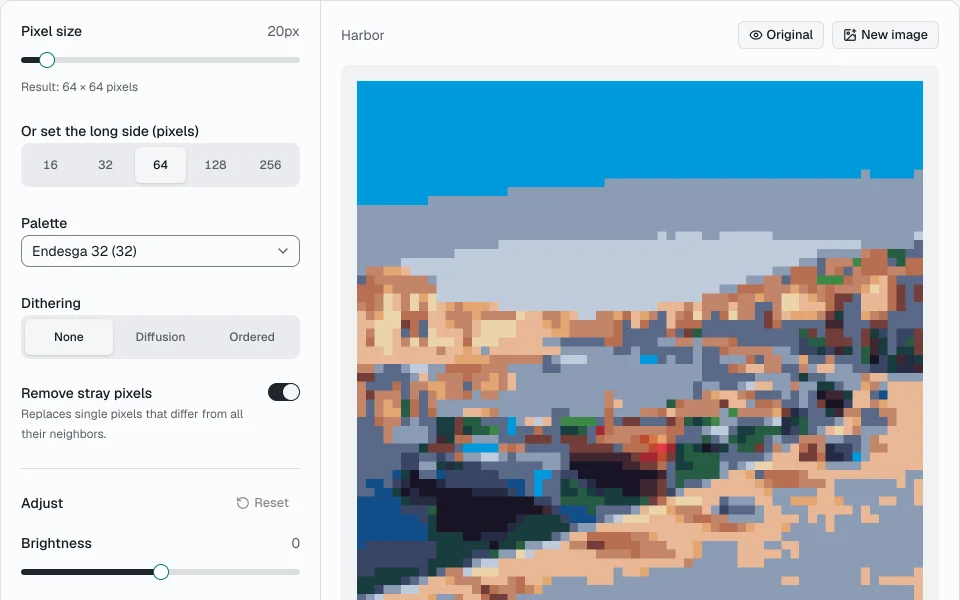
Set the grid and the colors
Pick a pixel size, then an automatic palette, a classic one such as PICO-8 or Game Boy, or your own hex colors. Add dithering for smooth gradients.
- 03
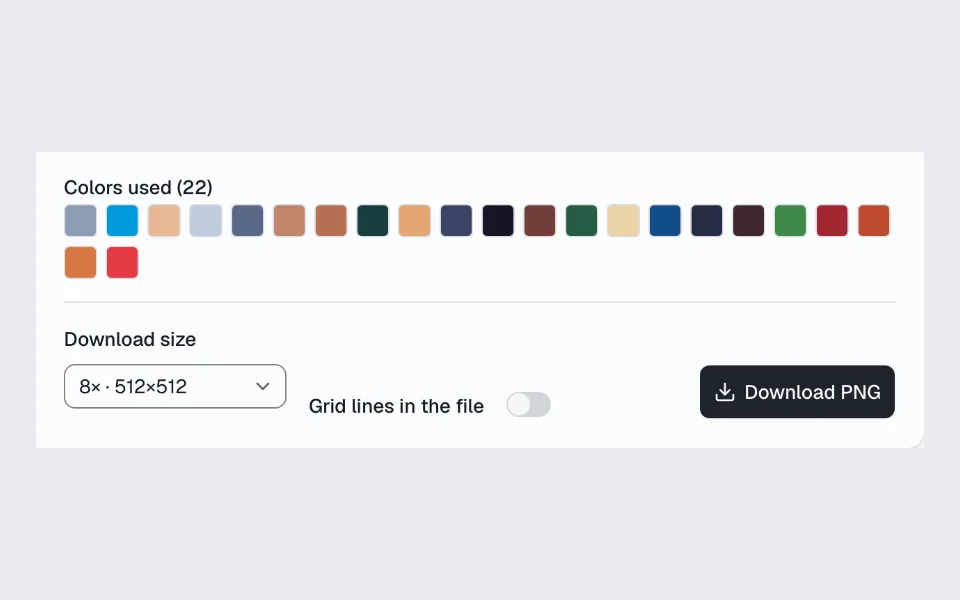
Download the PNG
Save it at 1× for a game sprite or texture, or enlarged by a whole factor so every pixel stays a sharp square.
What the converter does
The exact mode is built on a fixed algorithm instead of an AI model, so the result is exact and repeatable. The AI mode is there when you want a redraw.
An exact pixel grid
Each pixel of the result is the average color of the block of original pixels it covers, so the grid is even and the detail does not shift as you change the size.
Palettes that look right
Colors are matched by how different they look to the eye (OKLab color space), not by raw RGB values, and the automatic palette is fitted to your image.
Two kinds of dithering
Diffusion (Floyd–Steinberg) for natural gradients, or an ordered Bayer pattern for the regular checkerboard look of old consoles.
Private by design
In the exact mode the image is decoded and converted on your device. Nothing is uploaded, stored or used for training.
Clean exports
Download at the real pixel size or enlarged by 2× to 32× with no blur, with optional grid lines for reference.
An AI redraw when you want one
On the AI pixel art tab an image model repaints your photo in the style you pick: 8-bit, 16-bit, Game Boy, NES, PICO-8, SNES, a character portrait or an isometric scene. It uses credits.
AI pixel art styles
Eight presets for the AI mode. Each one is a prompt you can edit before you generate; the model redraws your photo in that style.
8-bit
Chunky pixels, a handful of flat colors and bold outlines, like late-1980s home consoles. Best for icons, avatars and simple subjects.
16-bit
Finer pixels with a few shading steps per color and crisp outlines, the look of 1990s console games. Works for characters and scenes alike.
Game Boy
Four shades of olive green and a low resolution, like the original handheld's screen. Strong shapes and high contrast read best.
NES
A low resolution with a small set of saturated colors and black outlines, the NES era look. Suits game-style characters and items.
PICO-8
The 16 colors of the PICO-8 fantasy console on a very small grid. Gives simple, bold shapes, good for tiny sprites and game mockups.
SNES
Rich colors, hand-placed shading and dithering, like a 1990s console RPG. Suits landscapes, buildings and detailed scenes.
Character portrait
A head-and-shoulders portrait like the dialogue portraits in retro RPGs, with careful shading on the face. Made for selfies and profile pictures.
Isometric
A 2:1 isometric view from above with flat shading on each face. Turns rooms, buildings and objects into game-style tiles.
Pixel art palette library
44 published palettes from Lospec, all in the converter's Palette menu. Each card shows the colors, how many there are and what the palette suits.
Classic consoles and computers
PICO-8
16 colorsThe fixed 16 colors of the PICO-8 fantasy console: bright and saturated, good for game sprites and bold characters.
Hardware paletteView on Lospec
Game Boy (DMG)
4 colorsThe four greens of the original Game Boy screen, for handheld-style sprites and portraits.
Hardware paletteView on Lospec
DMG-NSO
4 colorsA yellower, olive set of four Game Boy greens.
Hardware paletteView on Lospec
NES
55 colorsThe colors the NES could display, for 8-bit console-style game art.
Hardware paletteView on Lospec
Commodore 64
16 colorsThe Commodore 64's 16 muted colors, for retro computer art with a soft, earthy look.
Hardware paletteView on Lospec
ZX Spectrum
15 colorsThe ZX Spectrum's pure primaries at two brightness levels, for stark 8-bit computer art.
Hardware paletteView on Lospec
CGA (16 colors)
16 colorsThe 16 colors of IBM's Color Graphics Adapter, the look of early PC games.
Hardware paletteView on Lospec
CGA Palette 0 (High)
4 colorsCGA's four-color mode of black, green, red and yellow, used by many early PC games.
Hardware paletteView on Lospec
MSX
15 colorsThe MSX home computer's 15 colors, a softer 8-bit set than the Spectrum's.
Hardware paletteView on Lospec
Windows 16
16 colorsThe 16 standard colors of early Windows, for a classic desktop and icon look.
Hardware paletteView on Lospec
Macintosh II
16 colorsThe 16-color system palette of the Macintosh II, for early Mac-style graphics.
Hardware paletteView on Lospec
Small palettes (2–16 colors)
1-Bit
2 colorsA dark navy and white, for 1-bit art and high-contrast silhouettes.
by ThefunguyView on Lospec
1bit Monitor Glow
2 colorsNear-black and a pale white, like an old monochrome monitor.
by PolyducksView on Lospec
2-bit Grayscale
4 colorsBlack, white and two grays: four-shade monochrome for line art and print looks.
Grayscale 8
8 colorsEight even steps from black to white, for grayscale art with smoother shading.
by SZIEBERTH ÁdámView on Lospec
2bit demichrome
4 colorsFour soft grays with a slight tint, a muted take on four-color art.
by Space SandwichView on Lospec
Kirokaze Gameboy
4 colorsA four-color handheld palette in purple, teal, lime and white.
by KirokazeView on Lospec
Ice Cream GB
4 colorsFour warm colors from plum to cream, a pink handheld-style palette.
by Kerrie LakeView on Lospec
Mist GB
4 colorsFour colors from dark brown through teal to mint, a cool handheld-style palette.
by Kerrie LakeView on Lospec
Twilight 5
5 colorsFive dusky pinks and blues for calm evening scenes.
by StarView on Lospec
Oil 6
6 colorsSix colors from cream to deep indigo, for soft, painterly portraits.
by GrafxKidView on Lospec
Hollow
4 colorsNear-black, slate, pale pink-gray and white, for moody low-color art.
by PoltergasmView on Lospec
Sunset 8
8 colorsWarm yellows, oranges and pinks down to a deep purple, for sunsets and warm light.
by SamRIView on Lospec
SLSO8
8 colorsEight colors from navy to peach, a cool-to-warm ramp for landscapes and skies.
by Luis Miguel MaldonadoView on Lospec
Ammo-8
8 colorsEight greens from near-black to pale lime, a single-hue palette for green-screen art.
Nyx8
8 colorsDark blues paired with skin tones, for night scenes and characters.
Rust Gold 8
8 colorsGold, rust and dark grays, for warm industrial or treasure-themed art.
by Trigo MathmancerView on Lospec
Sweetie 16
16 colorsA balanced 16 colors with clear ramps of red, green and blue, a common choice for game jams.
by GrafxKidView on Lospec
DawnBringer 16
16 colorsA classic 16-color set with natural greens, browns and skin tones, built for general pixel art.
by DawnBringerView on Lospec
Arne 16
16 colorsSixteen colors with strong contrast and a full hue range, made for game graphics.
by ArneView on Lospec
NA16
16 colorsSixteen soft, slightly desaturated colors for fantasy and nature scenes.
by NaurisView on Lospec
Steam Lords
16 colorsSixteen muted greens, browns and blue-grays, for steampunk and dim interiors.
by SlynyrdView on Lospec
Lost Century
16 colorsSixteen faded earth tones, like a weathered old print.
by SurrealEmberView on Lospec
Large palettes (more than 16 colors)
Fantasy 24
24 colorsTwenty-four earthy colors heavy on browns and oranges, for medieval and fantasy settings.
Vinik24
24 colorsTwenty-four muted, pastel-leaning colors for calm, atmospheric scenes.
by VinikView on Lospec
CC-29
29 colorsTwenty-nine colors covering cool and warm hues with soft grays, for varied game scenes.
by Alpha6View on Lospec
Endesga 32
32 colorsA popular 32-color palette with saturated ramps and warm skin tones, for detailed game art.
by ENDESGAView on Lospec
DawnBringer 32
32 colorsAn all-round 32-color palette with long ramps, a standard for general pixel art.
by DawnBringerView on Lospec
Pear36
36 colorsThirty-six colors leaning toward pinks, purples and warm oranges, for vivid, cheerful art.
by PineappleOnPizzaView on Lospec
Lospec500
42 colorsForty-two colors chosen by the Lospec community, a wide palette for almost any subject.
Apollo
46 colorsForty-six colors in long hue ramps, from deep blues to warm skin tones, for detailed scenes.
by AdamCYounisView on Lospec
Endesga 64
64 colorsSixty-four colors including a full gray ramp, for large, detailed artwork.
by ENDESGAView on Lospec
Resurrect 64
64 colorsSixty-four colors with smooth ramps across every hue, good for converting photos.
by Kerrie LakeView on Lospec
AAP-64
64 colorsSixty-four colors with long, even ramps, a versatile palette for photos and illustrations.
by Adigun A. PolackView on Lospec
Color values come from Lospec's public palette list. Each palette belongs to its author.
Pixel art sizes and formats
How large to make the grid, which files the converter opens, and how transparency is kept.
Which size for what
- 16 × 16
- Favicons, tiny item icons and emoji-sized sprites.
- 32 × 32
- Game character sprites, inventory icons, and Discord or Slack emoji.
- 64 × 64
- Detailed sprites, avatars and profile pictures.
- 128 × 128
- Portraits, larger characters and map tiles with detail.
- 256 to 512 px
- Scenes, backgrounds, posters and wallpapers with a pixel look.
Input formats
The converter opens JPG, PNG, WebP and GIF files (the first frame of an animated GIF), and any other image your browser can display, such as AVIF, BMP or SVG. iPhone HEIC photos open in Safari; in other browsers, save them as JPG first.
Transparent backgrounds
Transparent areas stay transparent. A pixel is kept when at least half of its block is opaque, and its color is averaged from the opaque pixels only, so edges get no dark or white fringe. Download as PNG to keep the transparency.
Sprite generator: export game sprites and textures
Made for game art: the file you download is the sprite itself, not a picture of it.
Transparent PNG at the real size
Download at 1× and each pixel of the file is one pixel of the sprite, ready for Unity, Godot, GameMaker or Aseprite.
Your game's palette
Choose a palette from the library above or paste your own hex codes, and every pixel uses only those colors.
Fixed sprite sizes
Set 16, 32, 64, 128 or 256 pixels on the long side to match your tile or sprite size.
Whole-number enlargement
2× to 32× turns each pixel into a sharp square with no blur, for store pages, previews and social posts.
In the game engine, set the texture filter to Point (Unity) or Nearest (Godot) so the sprite stays sharp when it is scaled.
Exact conversion, AI redraw and pixel art filters
Three ways to get a pixel-art image from a photo, and what each one is good for.
Exact mode
Averages each block of pixels and matches it to a palette. Shapes stay where they are, the grid is exact, and the same settings always give the same result. Best for sprites, textures and a base you will edit by hand.
AI mode
An image model repaints the photo in a pixel-art style. It can simplify shapes and add outlines the way an artist would, but the grid is not exact and details change on every run. It uses credits. To snap an AI result to an exact grid and palette, download it and open it in the exact mode.
Pixel art filters and 8-bit image converters
A filter in a photo app usually shrinks and enlarges the image, often with blur and with all the original colors. An 8-bit look also needs a limited palette such as NES, Game Boy, PICO-8 or C64, which you choose here, with dithering to blend the colors in between.
Questions about the pixel art converter
Something not working? Write to us support@imagetoimage.io
Does this pixel art maker use AI?
Only on the AI pixel art tab. The exact mode uses no AI: the image is reduced to a grid by averaging blocks of pixels, and each block takes the nearest color of the palette, so the shapes stay exactly where they were. The AI mode sends your photo to an image model that redraws it in the style you pick; it needs an account and uses credits.
Is my image uploaded?
Not in the exact mode. The conversion runs in your browser: the file is read on your device and never sent to a server. The AI pixel art mode uploads the photo so the image model can redraw it.
What pixel size should I choose?
Choose the grid by its long side: 32 to 64 pixels for a sprite or icon, 96 to 160 for a scene. The 16, 32, 64, 128 and 256 buttons under the slider set the long side directly. The slider itself sets how many pixels of the original are merged into one pixel of the result; the result size is shown under it.
What is dithering and when should I use it?
Dithering mixes two palette colors in a pattern to suggest a color in between. Use it with small palettes and smooth gradients such as skies. Leave it off for flat, cartoon-like art.
Can I use my own palette?
Yes. Choose Custom and paste hex codes, for example copied from a palette page on Lospec. Every color in the result will come from that list.
Can I use the pixel art commercially?
We claim no rights over the images you make. Whether you may use them commercially depends on the rights to the picture you start from.
Is the pixel art maker free?
The exact mode is free with no limit, sign-up or watermark, because it runs in your browser. The AI pixel art mode needs an account and uses credits for each run; the cost shows before you generate.
Does it work on a phone?
Yes. It runs in current mobile browsers on iPhone and Android. Choose a photo, adjust the settings under the preview, and download the PNG to your photos or files.
How do I export pixel art with a transparent background?
Start from a PNG or WebP with transparency, or paste one. Transparent areas stay transparent in the result, and the PNG download keeps them at every size.
What is the difference between 32×32 and 64×64 pixel art?
A 32 × 32 sprite has 1,024 pixels, enough for a recognizable character or icon with a few colors. 64 × 64 has four times as many, with room for facial features, shading and small details. Smaller grids look more retro and are quicker to touch up by hand.
Which palette should I choose?
For a specific console look, use its palette: Game Boy, NES, PICO-8 or C64. For general game art, a 16 to 32 color palette such as Sweetie 16, Endesga 32 or DawnBringer 32 covers most subjects. For photos, start with the automatic palette, which is fitted to the colors of your image.
How is this different from Photoshop's Indexed Color mode?
Indexed Color reduces the colors but keeps every pixel of the photo, so you still have to shrink the image yourself without blurring it. This tool does both in one step: it averages blocks into an exact grid, matches colors by how they look (OKLab) instead of by RGB distance, removes stray pixels and enlarges by whole numbers.
Can I convert several images at once?
Not yet; the converter works on one image at a time. The palette, dithering and size preset stay set when you open the next image, so a set of sprites gets the same grid and colors.
Why does my pixel art look blurry in another app?
The PNG itself is sharp. Many viewers and editors smooth small images when they enlarge them. Download at 4× or 8× instead of 1×, or turn on nearest-neighbor (point) scaling in the app you use.
Is this a pixel art generator?
It has both modes. The exact mode is a converter: it turns an image you already have into pixel art and keeps its shapes exactly. The AI pixel art tab is a generator that redraws your photo in a pixel-art style. To create a new pixel-art picture from a description alone, use the AI text to image tool on our home page. The AI tools use credits.
How many credits does the AI mode use?
It depends on the model and the options you choose, and the panel shows the exact cost above the Generate button before you run it. You need to sign in, and credits come from your plan or a credit pack. The exact mode never uses credits.
Does the AI mode keep my face and the subject?
Every preset asks the model to keep the composition and the subject recognizable, and the character portrait preset asks it to keep facial features, hair and clothing. A redraw still simplifies details, so small features can change between runs. Run it again or edit the prompt if a result drifts.
Why is the AI result not on an exact pixel grid?
An image model paints pixel-art style rather than placing real pixels, so its blocks can vary in size and colors can fall outside a palette. Download the AI result and open it in the exact mode: set the grid and a palette, and every pixel snaps to them.
Can I pixelate only part of an image, such as a face?
No, the converter pixelates the whole image. For a mosaic of the full picture, choose the Keep all colors palette and a large pixel size. To hide a face or a license plate in one area, use a photo editor's mosaic or blur tool.
Want a pixel-art redraw instead of a conversion?
Pick a retro style, and an AI model redraws your photo.