
AI Image Upscaler
Upload a small or blurry picture, choose 2×, 4× or 8×, and get a larger version with sharper edges and restored detail, up to 16 megapixels.
1Upload a picture
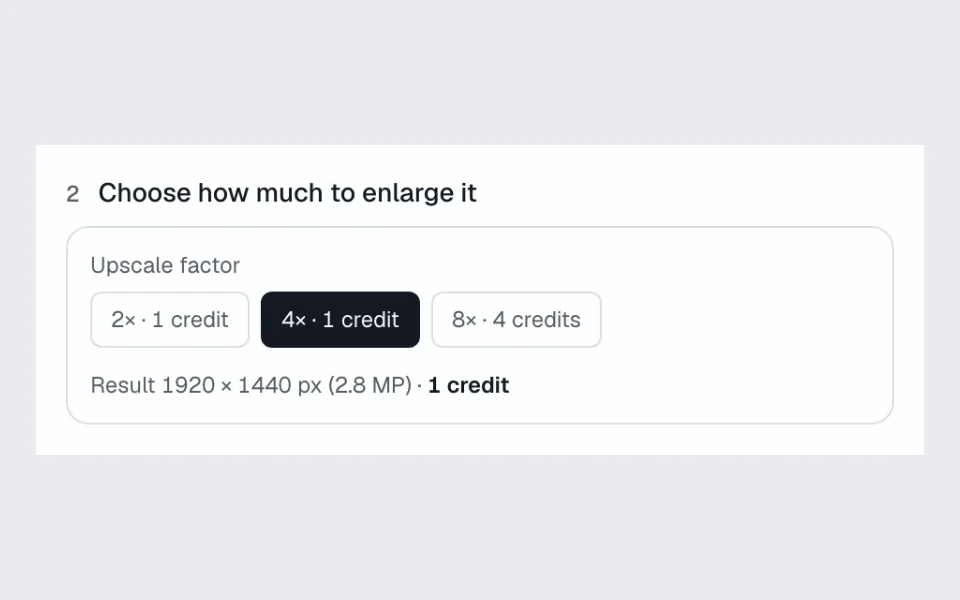
2Choose how much to enlarge it
Upscale factor
1–4 credits, depending on the picture size
- Up to 16 MP, enough for 4K
- Before and after slider
- No watermark
AI upscaling results at 2×, 4× and 8×
Each row is one detail of one uploaded picture: first the original enlarged by regular resizing, then the same detail after each factor. Real results, not retouched.
Portrait from a 1940 family photo
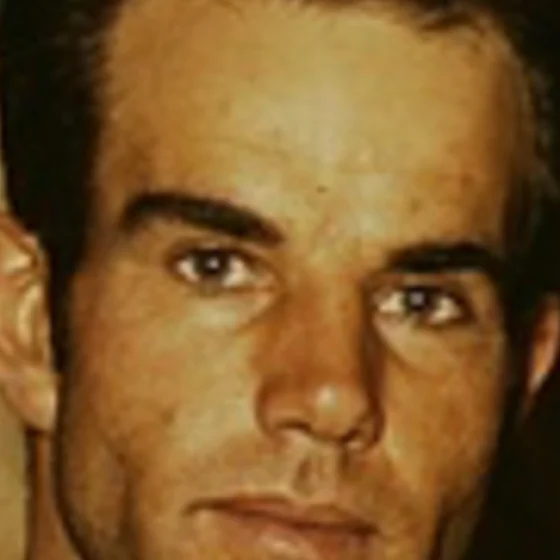
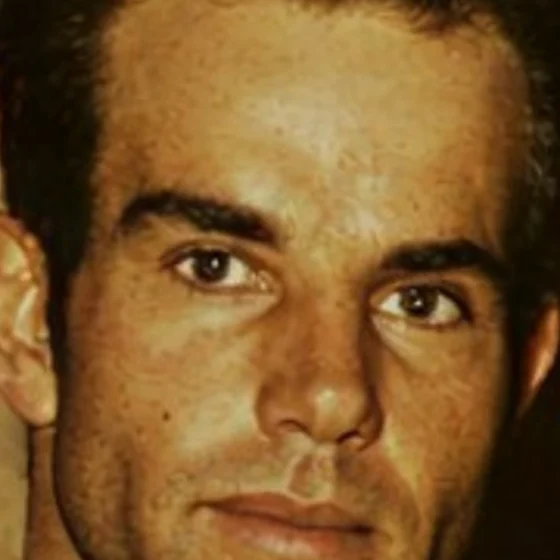
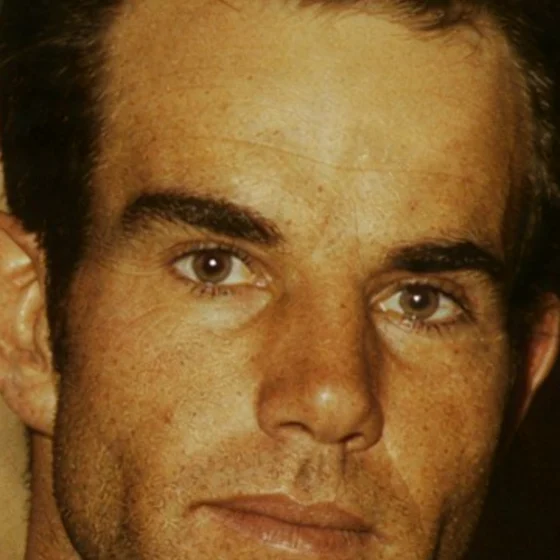
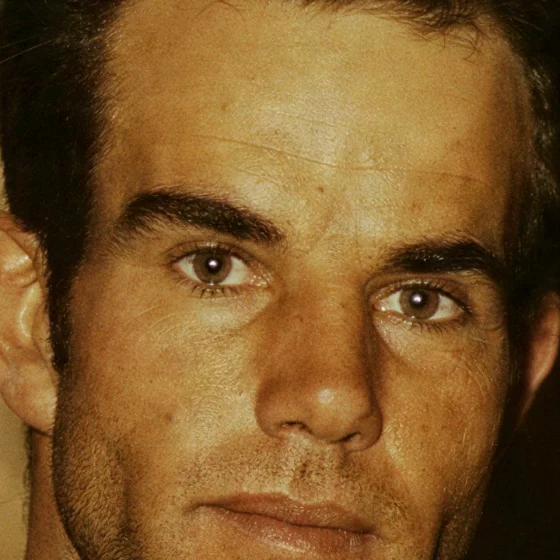
Photo: Russell Lee, 1940, Library of Congress (FSA/OWI Color, no known restrictions)
Anime illustration
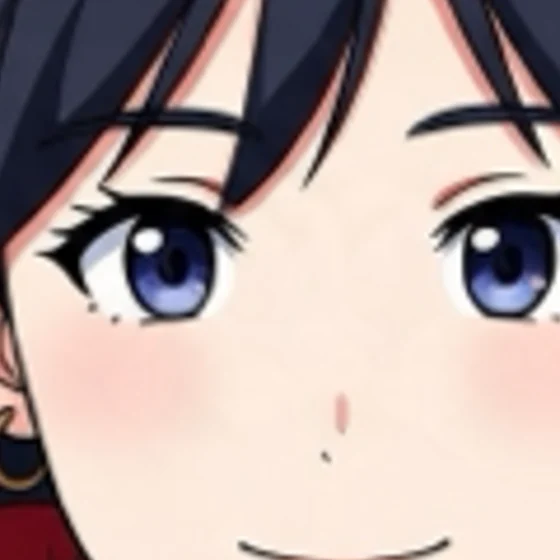
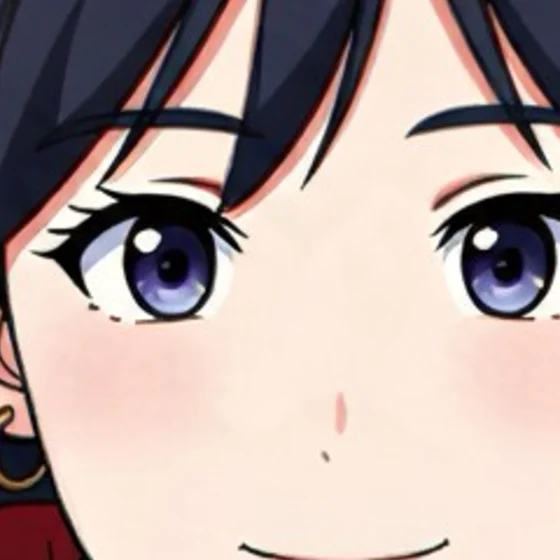
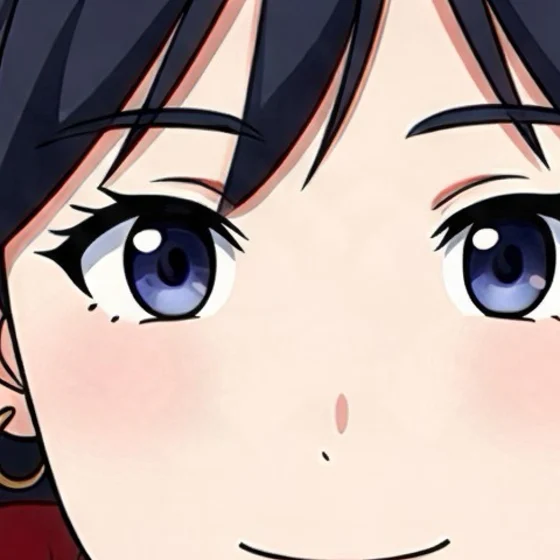
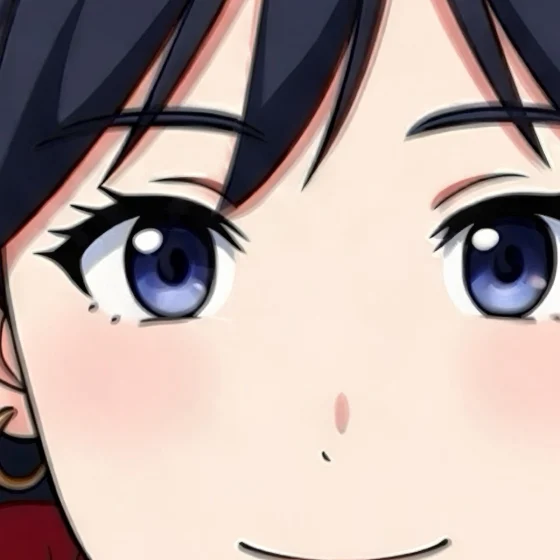
Picture made with the Image to Anime converter on this site
Printed dress on a 1940 color slide
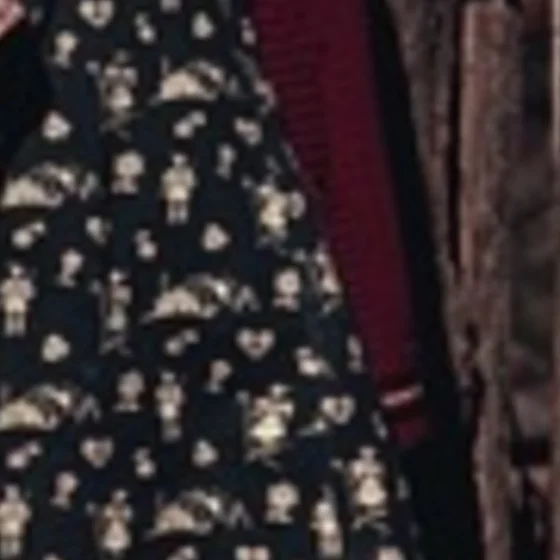
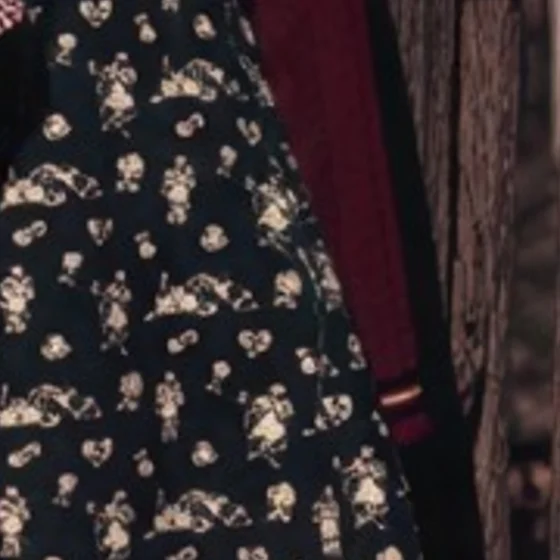
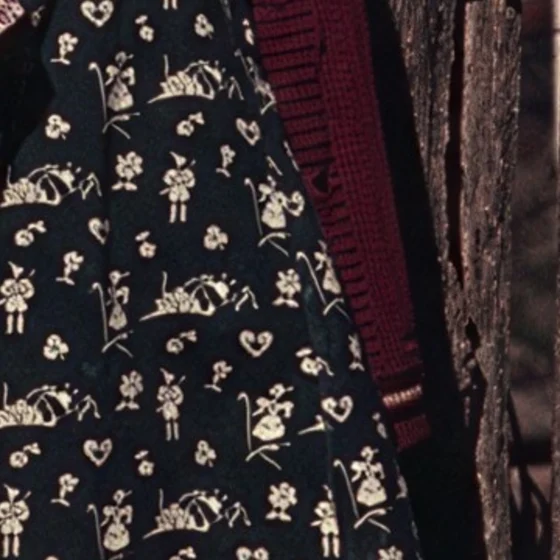
Photo: FSA/OWI Color slide, about 1940, Library of Congress (no known restrictions)
How to upscale an image
Three steps in the browser, on a computer or a phone.
- 01
Upload your picture
A JPG, PNG or WEBP up to 10 MB. The tool reads its size and shows which factors it can use.
- 02
Choose 2×, 4× or 8×
The size of the result and its price in credits show before you start.
- 03
Compare and download
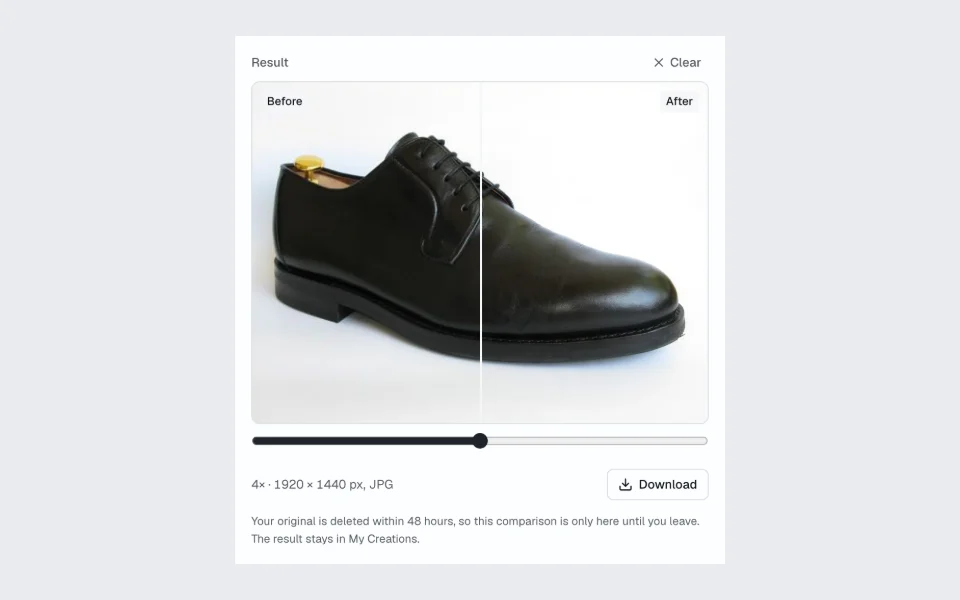
Drag the slider to compare before and after, then download the result as a JPG without a watermark. It is also saved to My Creations.
2×, 4× or 8×: which upscale factor to choose
A larger factor is not always better: the further a picture is enlarged, the more detail the AI has to invent. Pick by what the picture is for.
2× for photos that should stay natural
Doubles the width and height. The safest choice for faces, old photos and pictures that are only a little too small: the AI adds the least, so the result stays closest to the original.
4× for product photos and screens
Four times the width and height, for thumbnails, product shots and screenshots that must fill a web page, a marketplace listing or a large screen. Check faces and small text after upscaling.
8× for tiny pictures
Eight times the width and height, for icons, small crops and pictures of about 500 × 500 pixels or smaller. It is offered only when the result stays within 16 megapixels.
The tool offers only the factors your picture can use: the result is at most 16 megapixels, so a 1024 × 1024 picture can go to 2× but not to 4×.
Upscale image sizes, up to 4K: what you get from your picture
The result is at most 16 megapixels, about 4900 × 3265 pixels for a 3:2 photo. Each row is a common picture size with what each factor makes of it. As a 4K upscaler, 2× turns a full HD picture into 3840 × 2160.
| Your picture | 2× | 4× | 8× | Good for |
|---|---|---|---|---|
| 500 × 500 | 1000 × 10001.0 MP · 1 credit | 2000 × 20004.0 MP · 1 credit | 4000 × 400016.0 MP · 4 credits | Avatars, icons and small crops: 8× gives 4000 × 4000. It predicts the most detail, so check faces and edges before you use it. |
| 800 × 600 | 1600 × 12001.9 MP · 1 credit | 3200 × 24007.7 MP · 2 credits | Over 16 MP | Old digital camera photos and scans: 4× fills a full HD or 1440p screen. |
| 1280 × 720 | 2560 × 14403.7 MP · 1 credit | 5120 × 288014.7 MP · 4 credits | Over 16 MP | Video frames and screenshots: 2× for a 1440p screen, 4× for a 5K-wide picture. |
| 1024 × 1024 | 2048 × 20484.2 MP · 2 credits | Over 16 MP | Over 16 MP | AI-generated pictures: 2× gives 2048 × 2048 for a print or a listing. |
| 1920 × 1080 | 3840 × 21608.3 MP · 4 credits | Over 16 MP | Over 16 MP | Full HD pictures: 2× gives 3840 × 2160, which is 4K UHD. |
| 2048 × 2048 | Over 16 MP | Over 16 MP | Over 16 MP | Already too large to upscale: 2× would pass 16 megapixels. |
The price depends on the size of the result, from 1 to 4 credits; the panel shows the exact figure before you start.
What to upscale, and with which factor
Four common jobs and what to expect from each.
Old photos
Scans and prints from family albums, enlarged for a frame or a slideshow. Use 2×: a larger factor can sharpen grain and dust along with the faces. Upscaling does not remove scratches or add color.
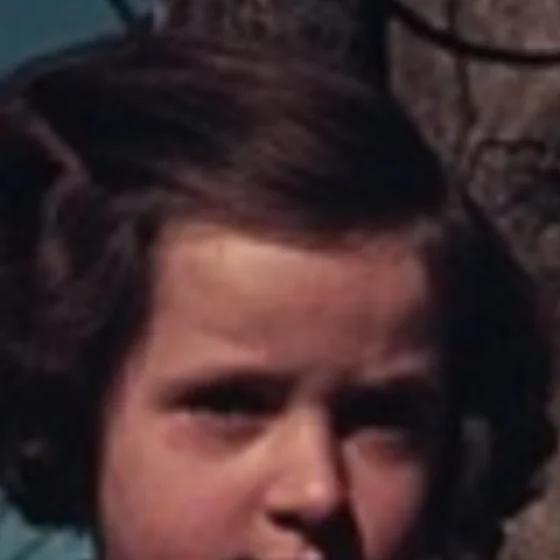
Original, enlargedUploaded at 480 × 640 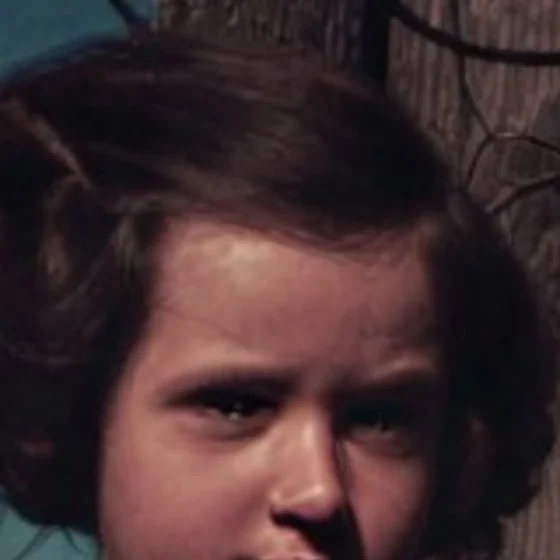
2× AI upscale960 × 1280 · 1 credit Photo: FSA/OWI Color slide, about 1940, Library of Congress (no known restrictions)
Photo upscaler for product shots
Small or compressed product shots enlarged for a store page or a marketplace listing, with cleaner edges and less JPEG blockiness. 4× suits most web listings.
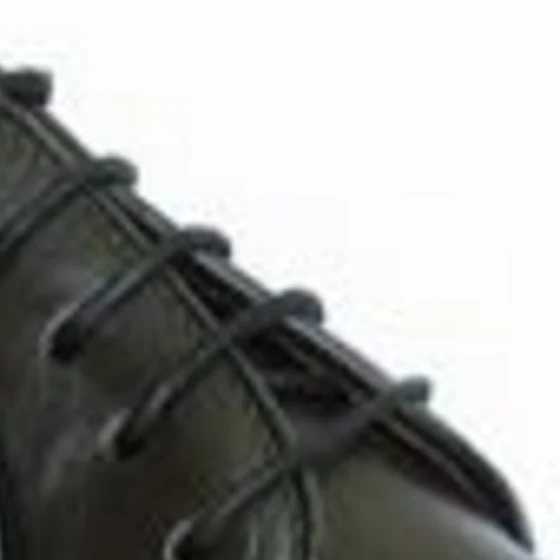
Original, enlargedUploaded at 480 × 360 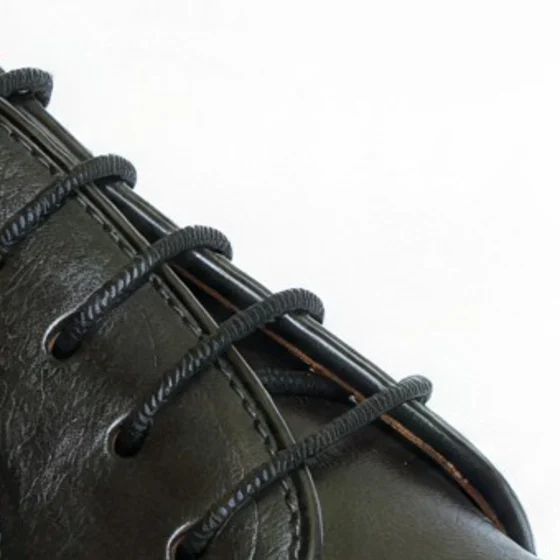
4× AI upscale1920 × 1440 · 1 credit Photo: Wikipedia-ce, Wikimedia Commons (CC0)
Anime upscaler for illustrations and waifu art
Line art and flat color, enlarged for wallpapers and prints of fan art, waifu portraits or your own drawings. Compare fine lines before and after at 8×, where the model has the most to invent.
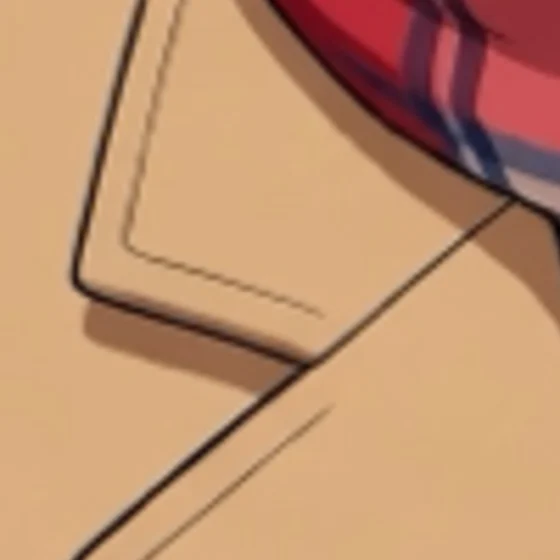
Original, enlargedUploaded at 500 × 500 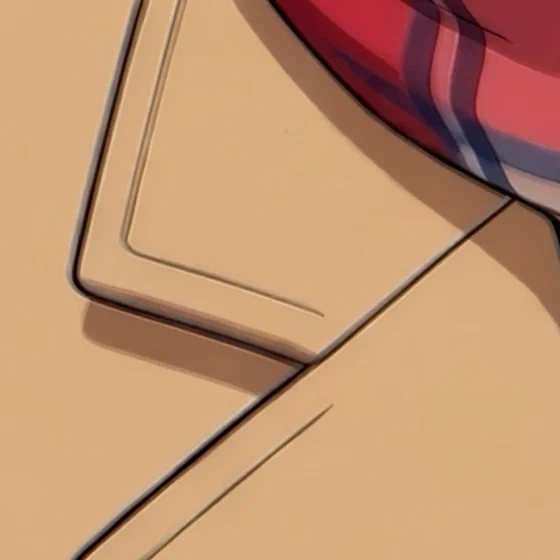
8× AI upscale4000 × 4000 · 4 credits Picture made with the Image to Anime converter on this site
Turn a photo into anime firstPrint
A print needs more pixels than a screen: an A4 page at 300 dpi is 3508 × 2480 pixels (8.7 megapixels). A photo of about 1500 × 2000 pixels upscaled 2× gives 3000 × 4000, enough for A4. Paper shows predicted detail more plainly than a screen, so start from the largest original you have and prefer 2× or 4×.
AI upscaling vs regular resizing
Both make a picture larger. They differ in where the new pixels come from.
| Aspect | Regular resizing (interpolation) | AI upscaling |
|---|---|---|
| How it works | Computes each new pixel from its neighbors (bicubic, bilinear or nearest neighbor). | A model trained on a large set of pictures predicts the detail a sharper version would have. |
| Edges and text | Stay soft; the larger the factor, the blurrier they get. | Come out crisp. Small text is not reliable: the model can reshape letters it cannot make out. |
| Texture | No new texture: skin, hair and fabric turn smooth and flat. | Adds texture such as hair strands and fabric weave. It is a prediction, so it can differ from the real object. |
| Faces | Look like the original, only softer. | Get sharper; on very small faces the model may change features or make skin look too smooth. |
| Best for | Pixel art, diagrams, and pictures where nothing may be added. | Photos, product shots, illustrations and screenshots that must look sharp at a larger size. |
Pixel art is the exception: its blocky pixels are the point, and an AI upscaler would smooth them. Enlarge it with nearest neighbor instead, which keeps every pixel a sharp square: whole-number enlargement in the Image to Pixel Art converter
AI Image Upscaler vs Topaz Gigapixel and Upscayl
Desktop upscalers are the better choice for some jobs. How the three compare:
| Aspect | This upscaler | Topaz Gigapixel | Upscayl |
|---|---|---|---|
| Where it runs | In the browser, on any computer or phone | Desktop app for Windows and macOS | Desktop app for Windows, macOS and Linux |
| Cost | 1 to 4 credits per picture; free credits to start | Paid | Free and open source |
| Hardware | None: the upscaling runs on our servers | Runs on your computer; a strong graphics card makes it faster | Runs on your computer; needs a graphics card with Vulkan support |
| Batch | One picture per run | Whole folders at once | Whole folders at once |
| Largest result | 16 megapixels | Well beyond 16 megapixels, limited by your computer | Well beyond 16 megapixels, limited by your computer |
Pick a desktop app when you upscale hundreds of files, need results larger than 16 megapixels, or must keep the pictures on your own computer. Pick this upscaler for a few pictures, on a phone, or on a computer without a graphics card.
AI image upscaler FAQ
Something not working? Write to us support@imagetoimage.io
What is the largest size I can upscale to?
The result can be at most 16 megapixels: for example 4000 × 4000, about 4900 × 3265 for a 3:2 photo, or 3840 × 2160 (4K UHD) from a 1920 × 1080 picture. The tool offers only the factors that stay within that limit: 8× works for pictures up to 0.25 megapixels, such as 500 × 500, and a picture over 4 megapixels, such as 2048 × 2048, is already too large to upscale.
Which file formats does it accept and return?
Upload a JPG, PNG or WEBP up to 10 MB; animated WEBP files are not accepted. The result is always a high-quality JPG, which keeps a 16-megapixel picture small enough to download quickly. A JPG has no transparency, so transparent areas of a PNG do not stay transparent.
Is there a watermark on the result?
No. Results download as clean JPG files, whether you used free credits or paid ones.
Is this AI image upscaler free?
You need an account to upscale, and new accounts get free credits, so your first pictures cost nothing. Each upscale uses 1 to 4 credits depending on the size of the result; the exact cost shows above the Upscale button before you start.
Will faces change when I upscale?
Upscaling enlarges the picture and adds detail; it does not redraw it. Faces that are large and sharp in the original stay true to the person. Very small faces, such as one person in a group photo, give the model little to work from, and it may smooth the skin or alter features; use 2× for those and compare before and after.
Can it restore old photos?
It makes old photos larger and sharper and reduces blur and JPEG artifacts. It does not remove scratches or tears, and it does not colorize black-and-white pictures. Upscale a scan at 2× first; a larger factor can sharpen grain and dust along with the picture.
Do I need to install software?
No. The page works in the browser on a computer or a phone, and the upscaling runs on our servers, so no graphics card is needed.
Can I use the upscaled images commercially?
Yes, if you have bought credits or a plan and you have the rights to the picture you upload. If you have only used free credits, the results are for personal, non-commercial use. Commercial use must follow our Terms of Service and content policy.
Why does my upscaled picture still look blurry?
AI upscaling can only build on what is in the original. A picture that is out of focus, motion-blurred or compressed into blocks gives the model little to work from, and the result stays soft or looks painted. Start from the largest, least compressed copy you have, and try a smaller factor.
Can I upscale many pictures at once?
Not yet: each run upscales one picture, and there is no batch queue. For hundreds of files, a desktop app such as Upscayl or Topaz Gigapixel is the better fit.
How is this different from Photoshop's Preserve Details upscaling?
Preserve Details 2.0 is a resampling method in Photoshop's Image Size dialog: it keeps edges sharper than bicubic resizing and runs inside Photoshop on your computer. This upscaler uses an AI model that adds new texture and detail, runs in the browser and needs no Photoshop license. For a picture that must not gain predicted detail, Photoshop's resampling is the safer choice.
Does it work on anime and illustrations?
Yes. Anime, cartoons and digital illustrations have clear lines and flat colors that the model follows well. At 8× the model has the most to invent, so compare the line art before and after.
Do you keep my pictures?
Uploaded pictures are deleted from our storage within 48 hours, which is why the before-and-after slider is only there until you leave the page. Results stay in your private history for 100 days and are never shown to other visitors.
Can I upscale an image to 4K?
Yes, when the result fits within 16 megapixels. 4K UHD is 3840 × 2160 pixels (8.3 megapixels): a full HD picture (1920 × 1080) upscaled 2× is exactly 4K, and a 960 × 540 picture reaches it at 4×. Smaller pictures can go beyond 4K, up to 16 megapixels, such as about 4900 × 3265 for a 3:2 photo.
Upscale your picture
2×, 4× or 8× up to 16 megapixels, a before-and-after slider, free credits to start.
Related tools
- Image to Image AIEdit or restyle any photo with a prompt: backgrounds, lighting, objects and any style you describe.
- Image to Pixel ArtTurn a photo into pixel art, and enlarge pixel art with nearest neighbor so every pixel stays a sharp square.
- Image to AnimeRedraw a photo in popular anime styles with the face kept recognizable.